
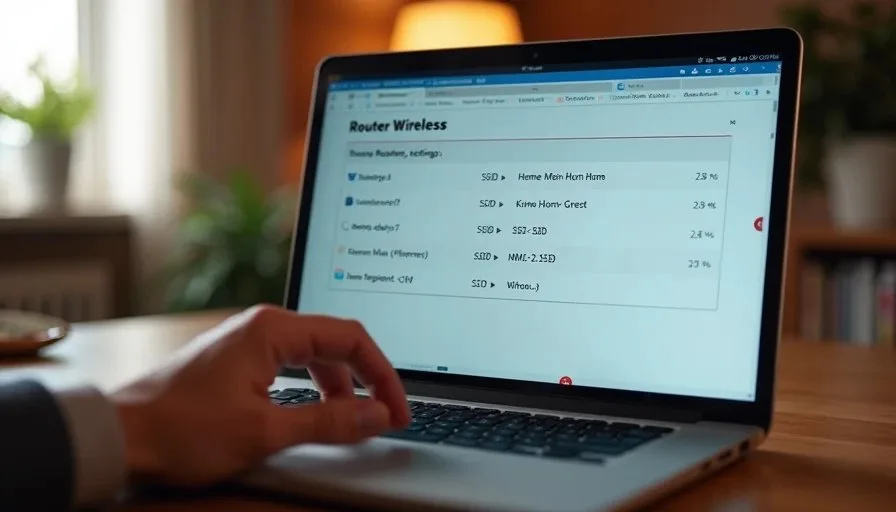
Most family homes run everything on one WiFi network. Work laptops, kids’ tablets, guest phones, smart cameras, and light bulbs all share the same access. That arrangement is simple to set up and increasingly hard to live with. A single compromised smart plug can sit on the same network as tax documents. A guest can see devices that have no business being visible. Kids’ screen-time rules become harder to enforce when every device looks the same to the router.
Creating separate networks is one of the highest-value security and reliability steps a household can take. It does not require enterprise equipment. Most modern consumer routers already support the necessary features. The work is mainly organizational: decide what belongs together, give each group its own network name and password, and move devices once.
I have set up this structure in our own house and in many family homes. The result is calmer network behavior, clearer parental controls, and a much smaller blast radius if any single device misbehaves. Here is a practical way to do it.
Why One Network Becomes a Problem
A flat network treats every connected device as equal. That creates three recurring issues:
Privacy and security risk. Smart cameras, doorbells, and inexpensive IoT gadgets have uneven security track records. When they share a network with computers that hold financial or work files, a problem on the low-security device can affect the high-value ones.
Management friction. Applying screen-time limits or pausing internet access for children’s devices is harder when those devices sit alongside adult work machines. Guest access becomes an all-or-nothing decision.
Troubleshooting noise. When something slows the network down, the list of possible causes includes every phone, tablet, laptop, plug, and bulb in the house. Separating the groups shrinks the search space.
Segmentation does not eliminate every risk. It does make everyday problems smaller and more contained.
The Four Practical Groups
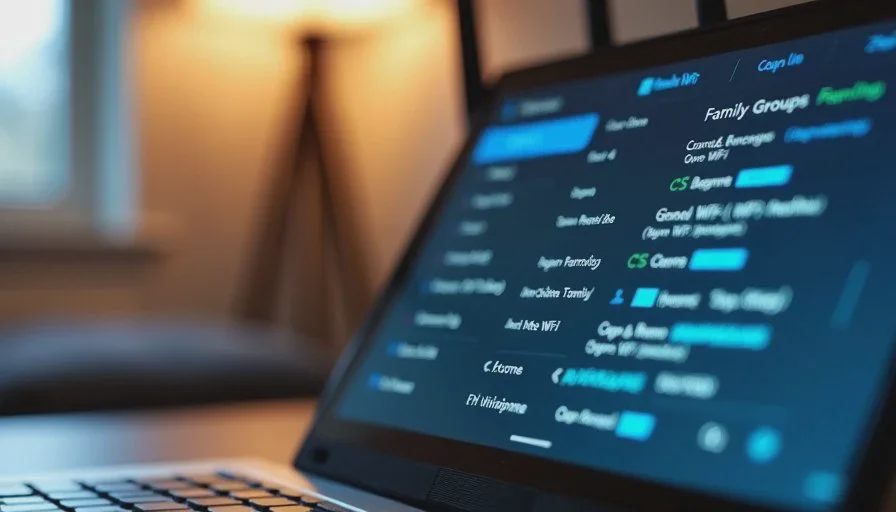
Most family homes need only four logical networks:
Main / Adults – work laptops, adult phones, shared computers, printers that handle sensitive documents.
Kids – children’s tablets, phones, school devices, and any gaming consoles that need managed access.
Guests – temporary visitor devices. Internet access only, no visibility into household devices.
IoT / Smart Home – cameras, smart plugs, lights, speakers, thermostats, and other gadgets that need internet but should not reach the main computers.
Some households combine Kids and Guests temporarily. Others split IoT further if they have high-security cameras. Four groups cover the large majority of situations without becoming complicated.
What You Need Before You Start
A router that supports multiple SSIDs or VLANs (most mid-range and newer routers do).
The current admin password for the router.
A short list of which devices belong in which group.
Thirty to sixty minutes when you can reconnect devices without rushing.
If your router only offers a single guest network, you can still achieve useful separation by putting kids and IoT on the guest network and keeping only adult devices on the main network. It is not perfect isolation, but it is a clear improvement over one flat network.
Step-by-Step Setup
1. Log into the router and locate the wireless settings
Find the section for WiFi networks, SSIDs, or guest networks. Many routers let you create additional networks beyond the primary one and the guest network.
2. Create or rename the networks with clear names
Use plain names that any adult in the house will understand later:
Home-Main
Home-Kids
Home-Guest
Home-IoT
Avoid cute or vague names. Clarity reduces future confusion.
3. Set strong, unique passwords for each network
Each network should have its own password. Store them in a shared password manager or a secure note that only the adults can access. Changing a kids-network password later becomes much easier when it is not shared with the main network.
4. Adjust isolation and access settings
Guest network: enable client isolation so guest devices cannot see each other or any household devices.
IoT network: allow internet access but block access to the main network if the router offers that control.
Kids network: apply any screen-time schedules or pause controls the router provides.
Exact menu names vary by brand, but the options are usually present under advanced wireless or guest-network settings.
5. Move devices one group at a time
Start with the IoT devices. They usually have the least complicated reconnection process. Then move kids’ devices. Finish with any remaining adult devices that should stay on the main network. Guests will simply use the guest network when they visit.
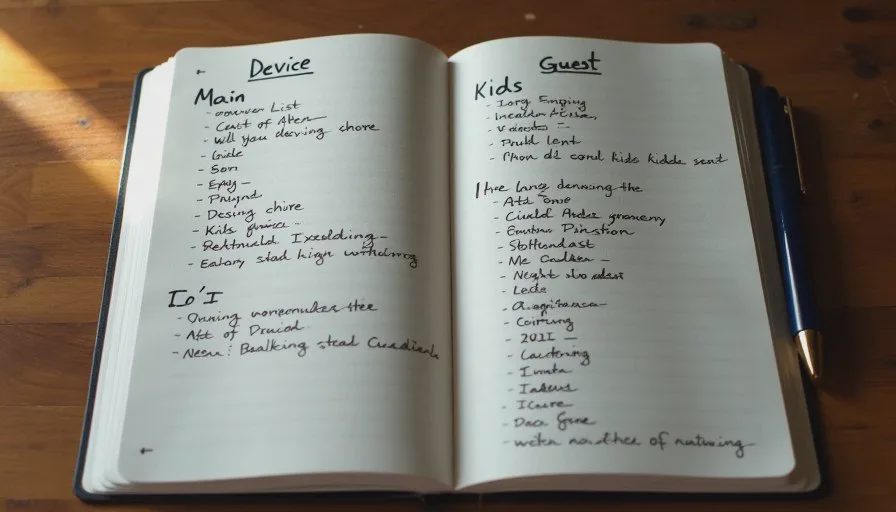
Keep a temporary note of which device moved where so you can reverse a change if something stops working.
Real-Home Considerations
Smart speakers and displays
Some voice assistants work better when they can see other devices on the same network. If a speaker needs to control lights or locks, either keep those devices together on the IoT network or accept that some control features may be limited. Test after moving.
Printers and shared drives
Printers that adults use for sensitive documents belong on the main network. If kids also need to print, consider a second inexpensive printer on the kids network or use cloud printing that does not require local network discovery.
Gaming consoles
Consoles often benefit from the main network for lowest latency, but they can also live on the kids network if screen-time controls are important. Test both if latency matters for competitive play.
Cameras and doorbells
These almost always belong on the IoT network. They need internet for remote viewing but have no legitimate reason to reach work laptops or file shares.
How Separation Improves Daily Life
In our house the change produced three noticeable benefits.
First, guest access became simple. Visitors receive the guest password and never touch the main network.
Second, kids’ internet can be paused or scheduled without affecting adult work devices. The router’s controls apply cleanly to one SSID.
Third, when a smart plug or camera starts misbehaving, the problem stays inside the IoT network. The main work machines continue uninterrupted while we troubleshoot the gadget.
The network feels quieter. There is less background worry about what is connected to what.
Maintaining the Structure
Once the networks exist, maintenance is light:
When a new device arrives, decide which group it belongs to before connecting it.
Review the device lists every couple of months and remove anything that no longer belongs.
Change the guest password periodically if many visitors cycle through the house.
Keep the router firmware updated so the isolation features remain reliable.
The initial setup takes the most time. After that the system largely runs itself.
A Calmer Baseline
Separate networks are not about paranoia. They are about matching access to purpose. Adult work devices receive the most protected network. Children’s devices receive managed access. Guests receive internet without visibility into the household. Smart devices receive the connectivity they need without unnecessary reach.
Most families can implement this structure with the router they already own. The result is a home network that is easier to understand, easier to control, and more resilient when any single device has a problem.
Stability First.